> ## Documentation Index
> Fetch the complete documentation index at: https://docs.pads4.com/llms.txt
> Use this file to discover all available pages before exploring further.
# Canva set-up for individual users
> Walkthrough for each Canva user to create their own developer integration, generate the client secret, and authorize PADS4 to access their Canva account.
This procedure must be completed individually by each Canva user. The integration is user-specific and cannot be shared.
1. Open a web browser and go to [https://canva.com/developers](https://canva.com/developers).
2. Log in using your Canva account.
3. Navigate to **Your integrations.**
4. Click **Create an integration**.
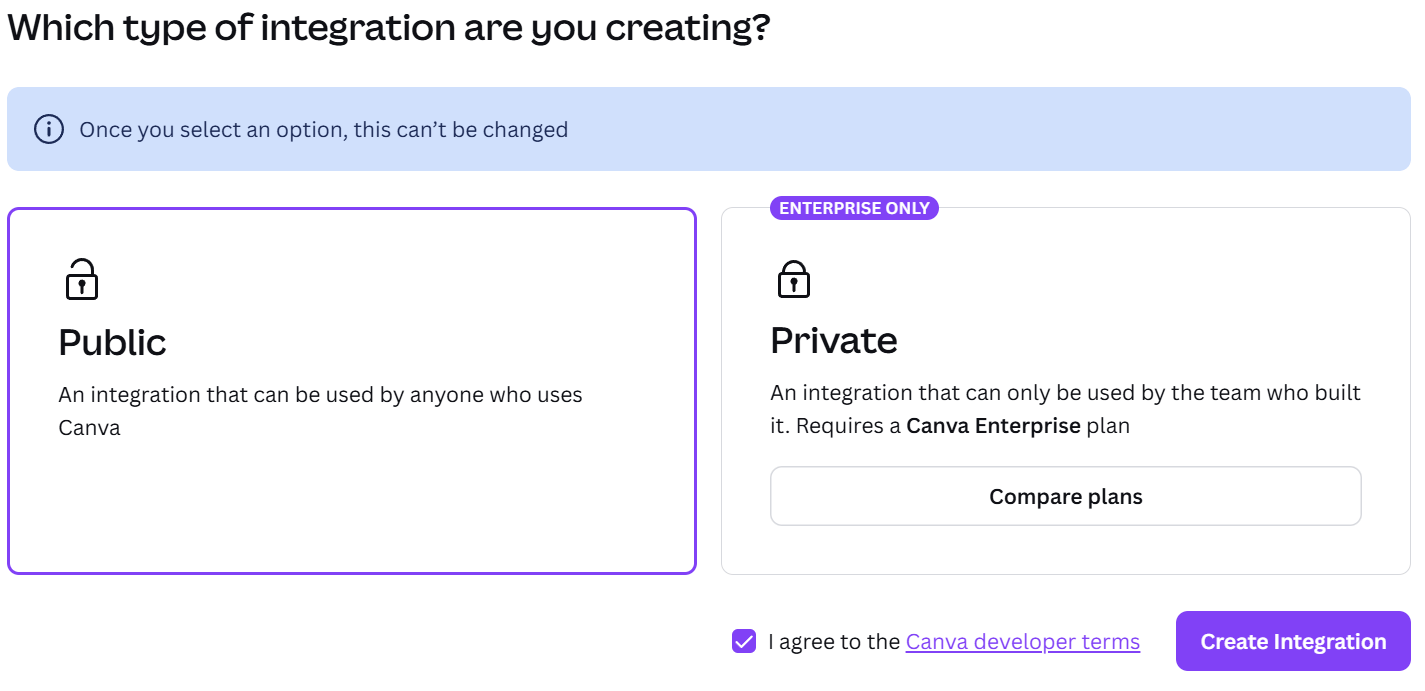
 5. Choose either a Public or Private integration. Accept the Canva Developer Terms and click **Create integration**.
 6. On the configuration page, enter a name for the integration.Click **Generate secret**.
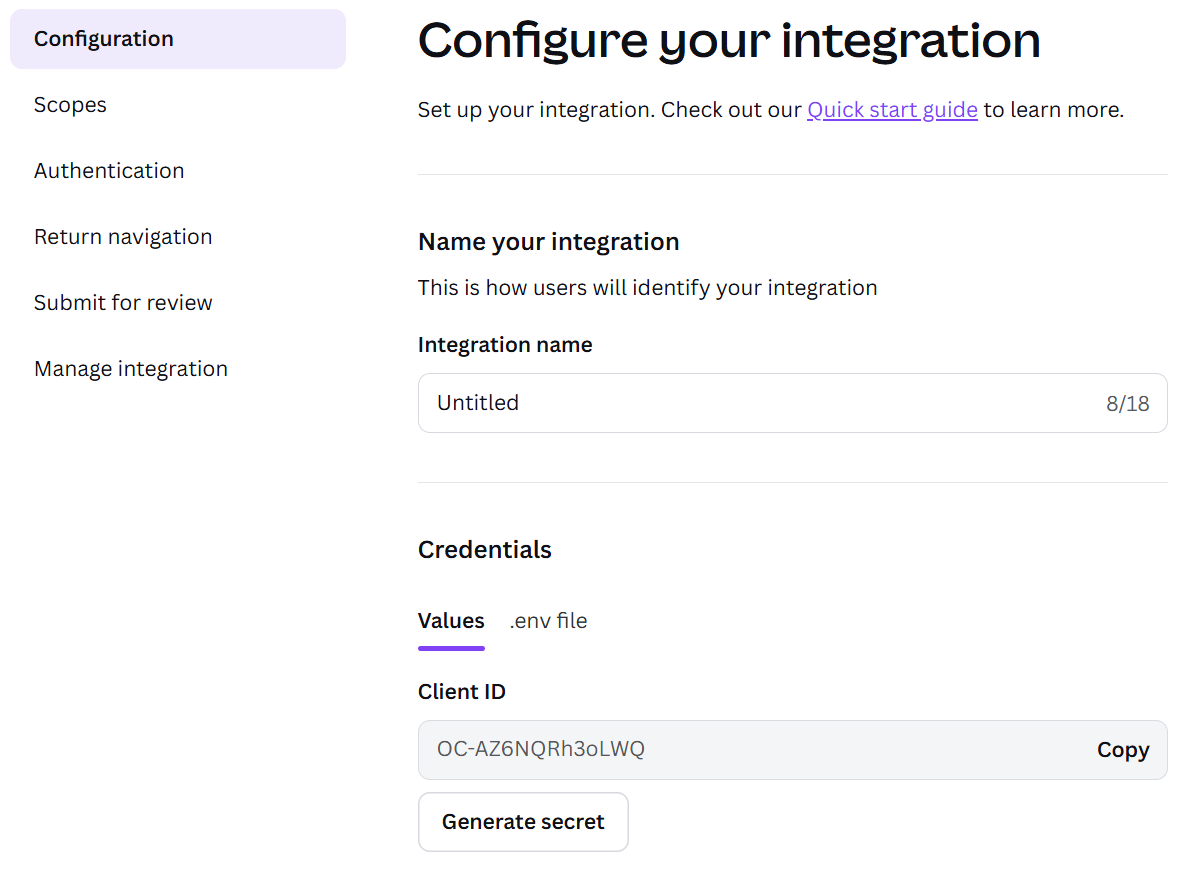 Copy the **Client ID** and **Client Secret**, and store them securely. These are required for the PADS4 configuration. If the Client Secret is lost, a new one must be generated.
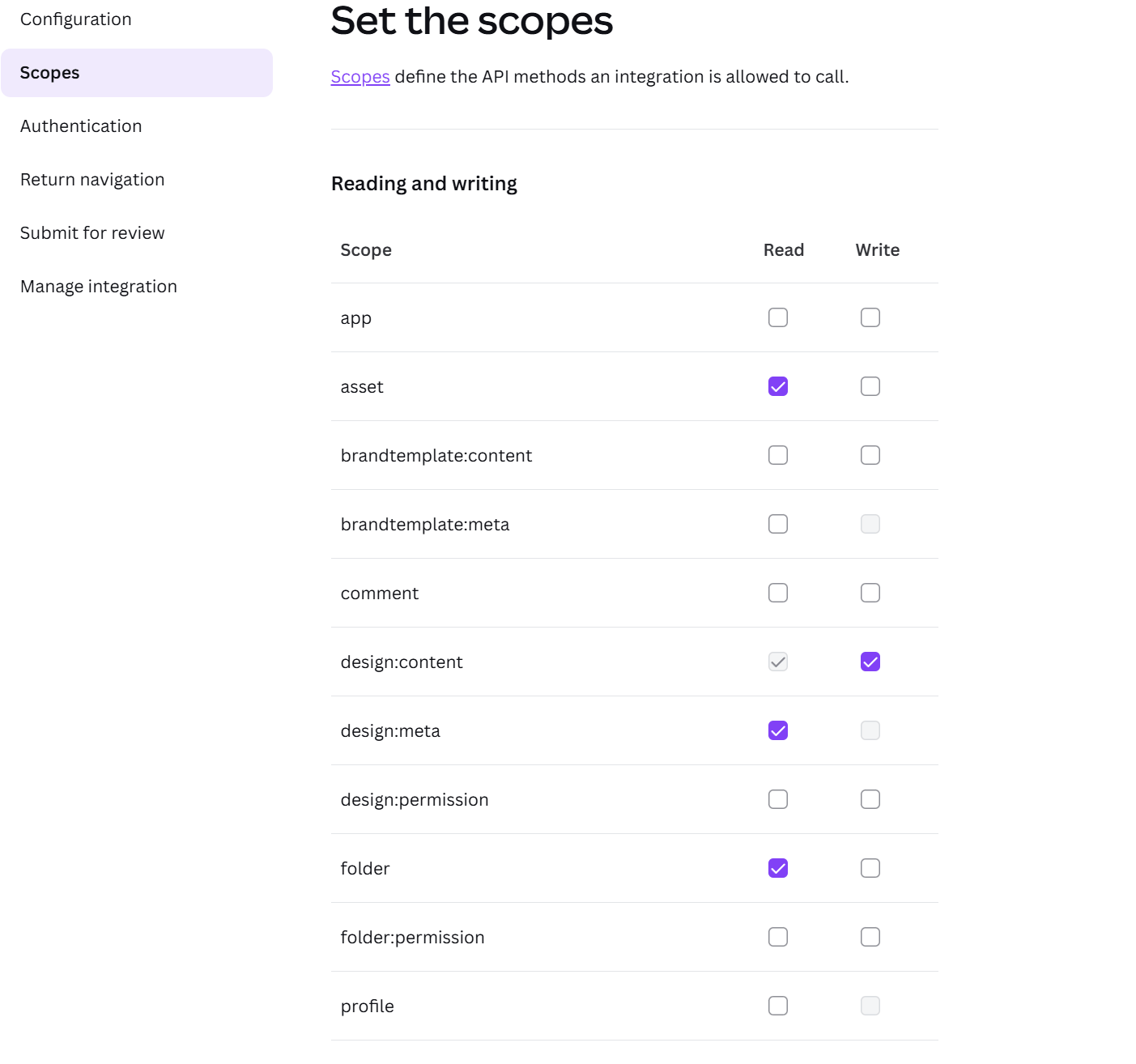
7. Go to the **Scopes** section and enable the required scopes shown below.
Copy the **Client ID** and **Client Secret**, and store them securely. These are required for the PADS4 configuration. If the Client Secret is lost, a new one must be generated.
7. Go to the **Scopes** section and enable the required scopes shown below.
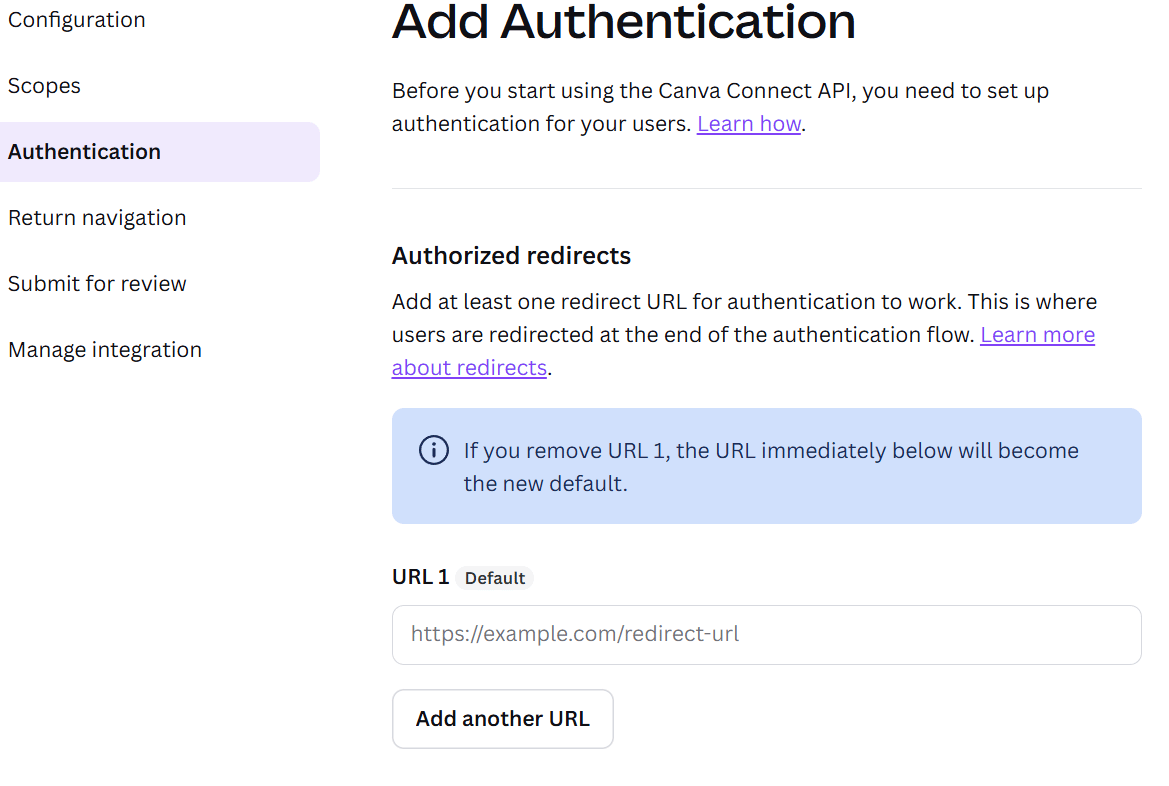
 8. Navigate to the **Authentication** section. \
Set **URL1** to:\
https\://\/rdx/NDS.Services.Credentials/api/v1/credentials/canva/auth/callback/\
Replace `` with the hostname or IP address of your PADS4 server.
8. Navigate to the **Authentication** section. \
Set **URL1** to:\
https\://\/rdx/NDS.Services.Credentials/api/v1/credentials/canva/auth/callback/\
Replace `` with the hostname or IP address of your PADS4 server.
 9. The Canva setup is now complete. Proceed with configuring the integration in PADS4 using the saved credentials.
\\
9. The Canva setup is now complete. Proceed with configuring the integration in PADS4 using the saved credentials.
\\