> ## Documentation Index
> Fetch the complete documentation index at: https://docs.pads4.com/llms.txt
> Use this file to discover all available pages before exploring further.
# Canva set-up
> Create a Canva developer integration in canva.com/developers and generate the client ID and secret needed to connect Canva to PADS4 Designer.
1. Open a web browser and go to [https://canva.com/developers](https://canva.com/developers).
2. Log in using your Canva account.
3. Navigate to **Your integrations.**
4. Click **Create an integration**.
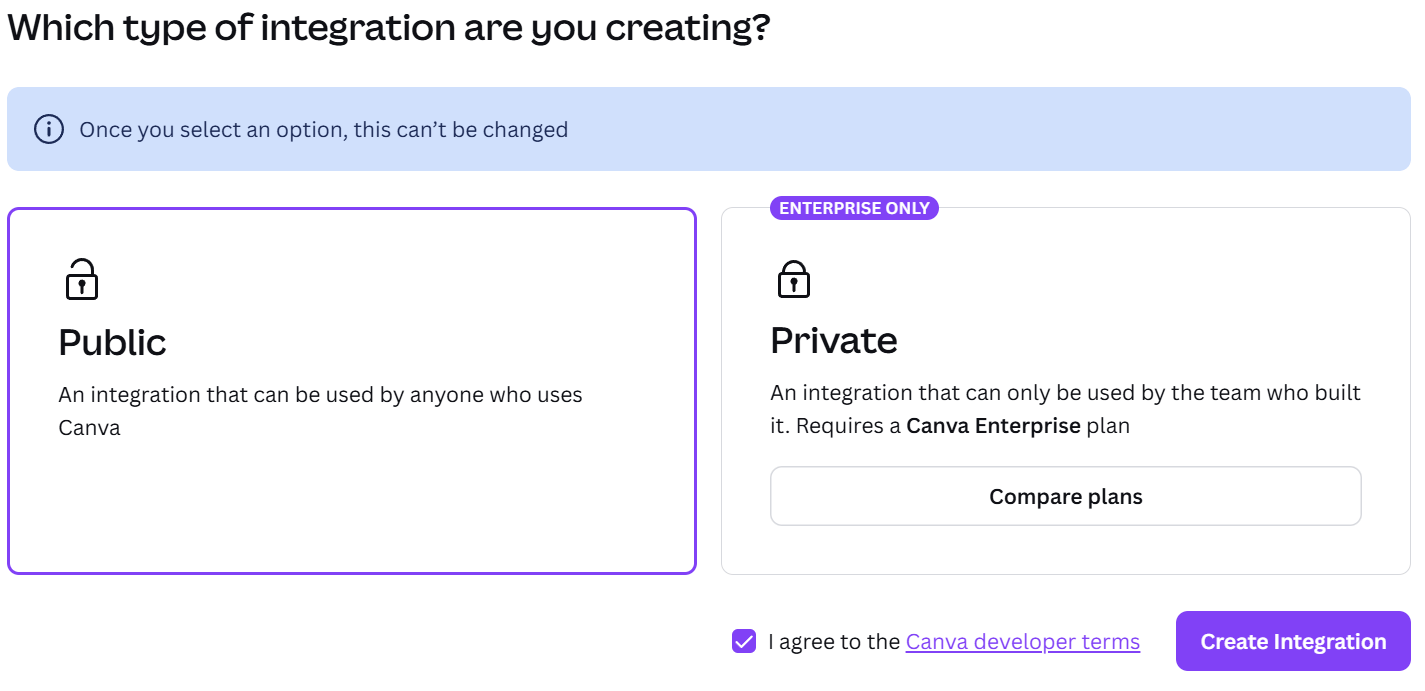
 5. Choose either a Public or Private integration. Accept the Canva Developer Terms and click **Create integration**.
 6. On the configuration page, enter a name for the integration.Click **Generate secret**.
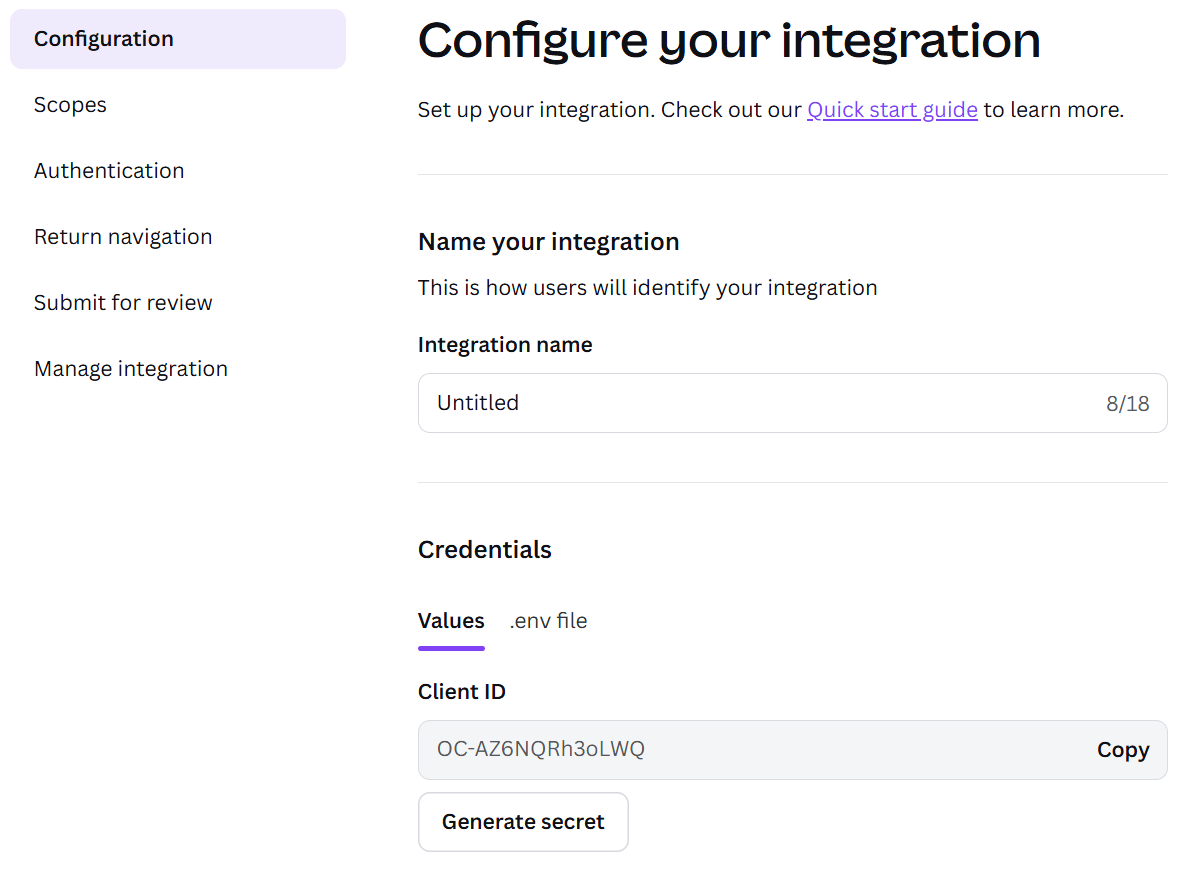 Copy the **Client ID** and **Client Secret**, and store them securely. These are required for the PADS4 configuration. If the Client Secret is lost, a new one must be generated.
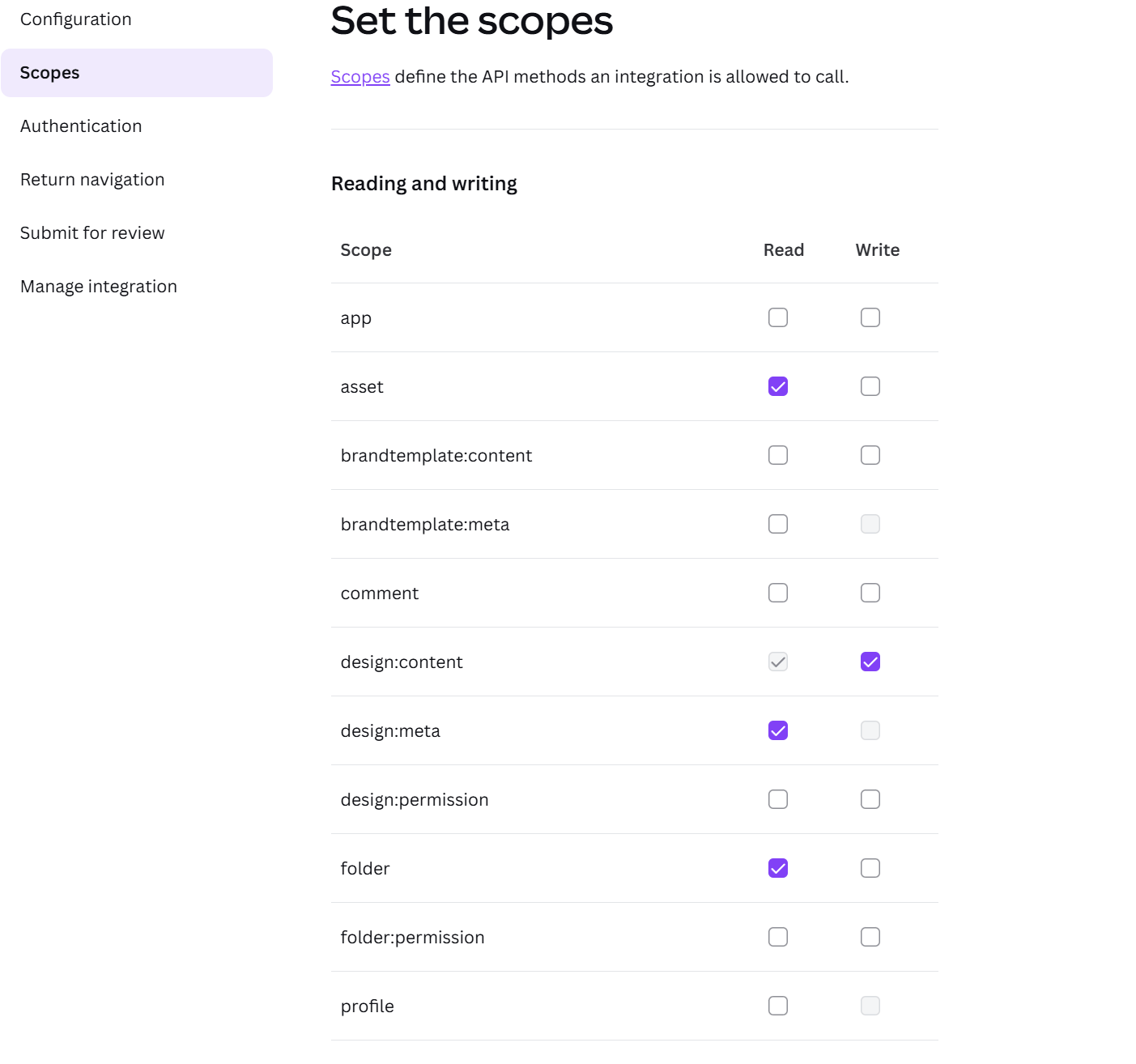
7. Go to the **Scopes** section and enable the required scopes shown below.
Copy the **Client ID** and **Client Secret**, and store them securely. These are required for the PADS4 configuration. If the Client Secret is lost, a new one must be generated.
7. Go to the **Scopes** section and enable the required scopes shown below.
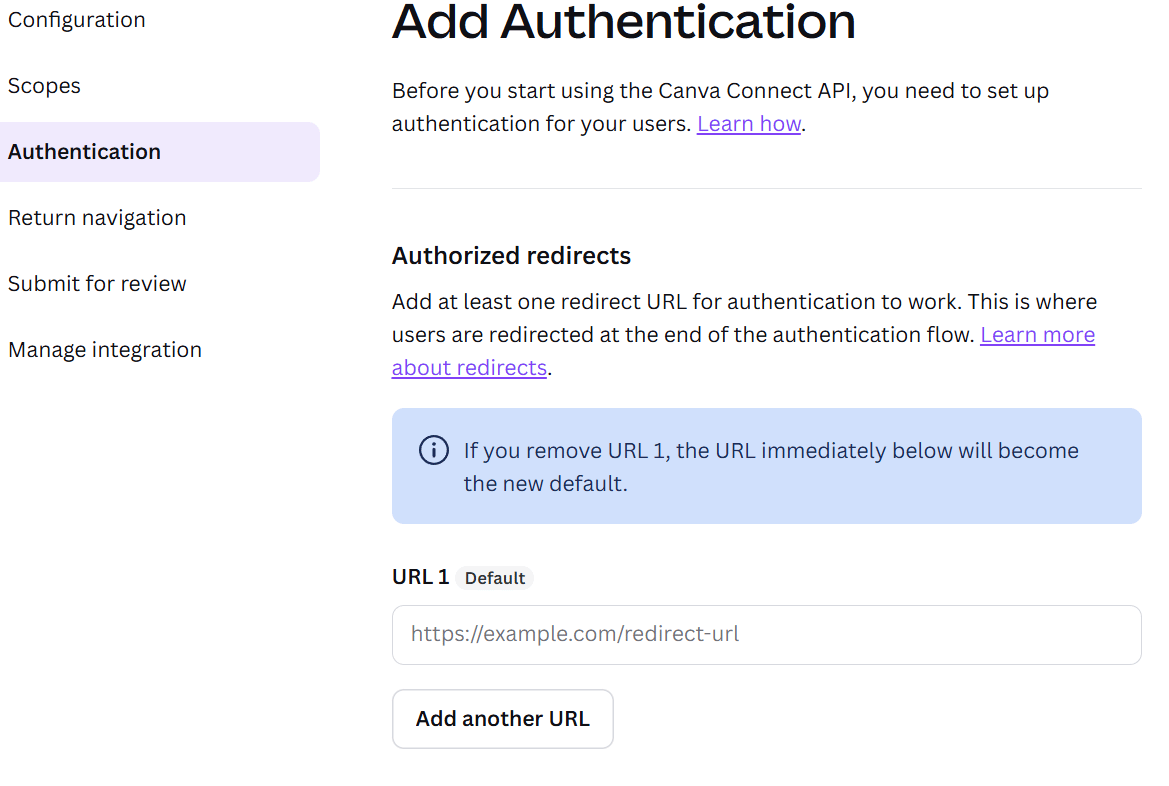
 8. Navigate to the **Authentication** section. \
Set **URL1** to:\
https\://\/rdx/NDS.Services.Credentials/api/v1/credentials/canva/auth/callback/\
Replace `` with the hostname or IP address of your PADS4 server.
8. Navigate to the **Authentication** section. \
Set **URL1** to:\
https\://\/rdx/NDS.Services.Credentials/api/v1/credentials/canva/auth/callback/\
Replace `` with the hostname or IP address of your PADS4 server.
 9. The Canva setup is now complete. Proceed with configuring the integration in PADS4 using the saved credentials.